Free desktop app · Windows and Linux
 Relief Studio
Relief toolpaths for your own CNC router. A model or a greyscale image in; checked roughing and finishing g-code out, with a setup sheet to carve from.
Download for Windows Download for Linux
Windows may warn that the app is unsigned — choose “More info → Run anyway”.
Check your download
The archives are unsigned, so nothing vouches for them but these digests. Compare after downloading — sha256sum -c SHA256SUMS.txt, or Get-FileHash on Windows.
| Windows | 7fa8627f2a0ad376ad71ddb4f13b7b4932fd08ca24d6b5192833d3bbaae15906 |
|---|---|
| Linux | 7a83d4c278b5f587ea0009d5ee5a7fae686a8a8f4bab2c0a4a8b1aae5067aee0 |
How it works
Five steps, left to right
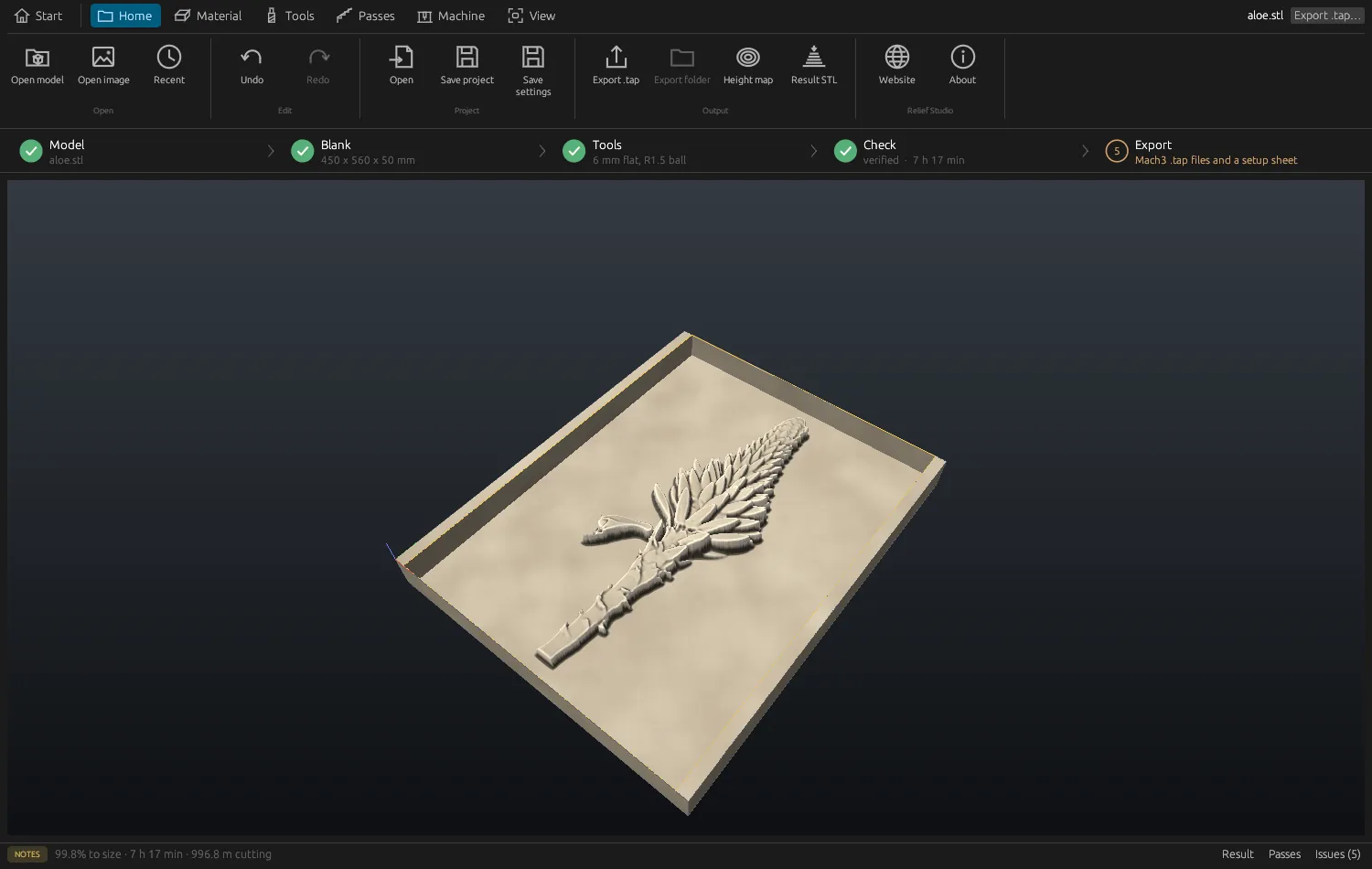
The step bar across the top of the app is the whole job. Each step turns green when it is set; the last one writes the files.
- ModelOpen an STL, an OBJ or a greyscale image. Rotate, mirror, set the size.
- BlankStock size, carve depth and the material it is cut from.
- ToolsA flat end mill to rough, a ball nose to finish, with feeds and speeds.
- CheckEvery move verified against the model, the result simulated, the time counted.
- ExportTwo .tap files and a printable setup sheet with zeroing and times.
Two cuts
Rough it out, then finish to the surface
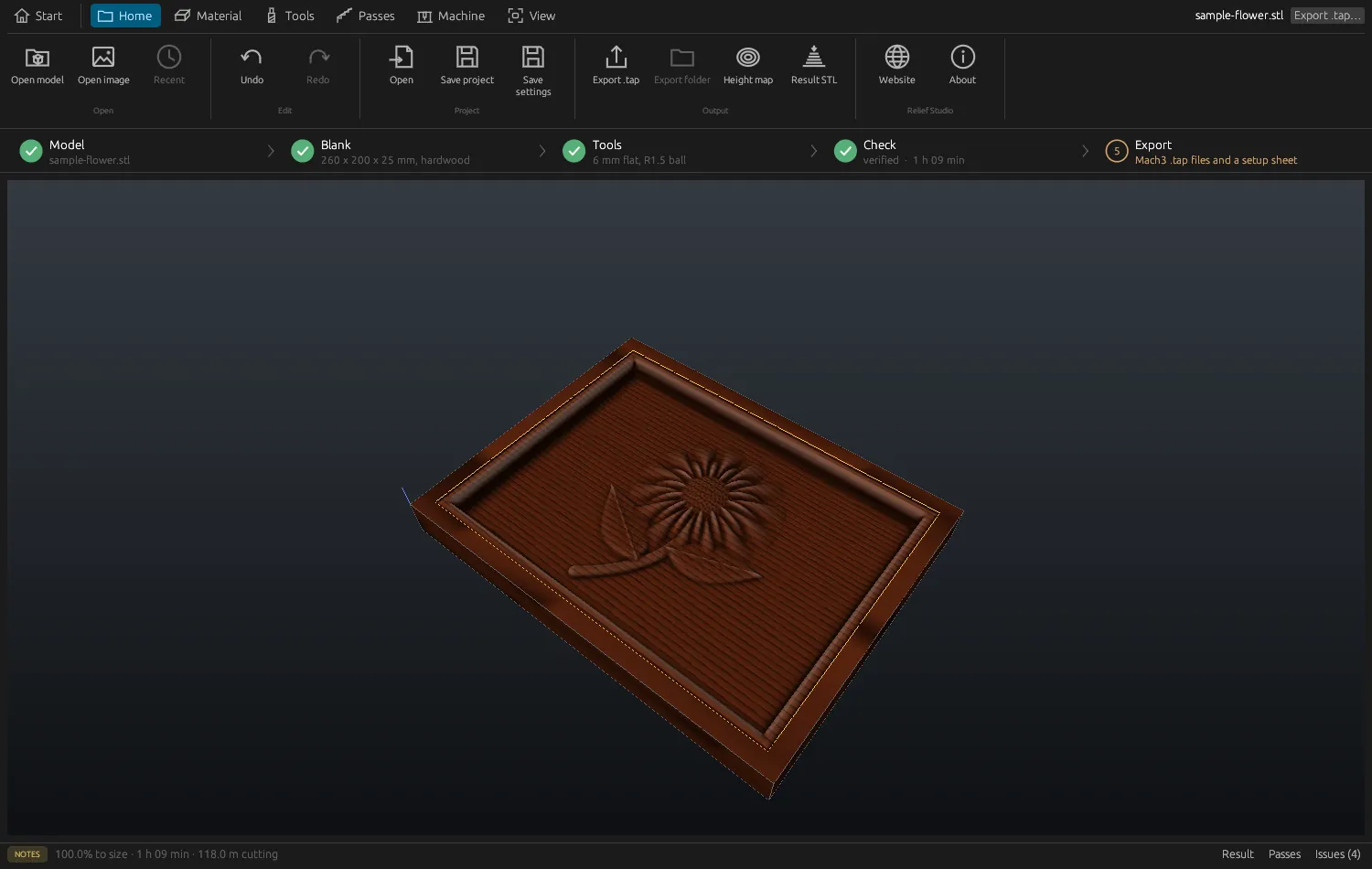
The flat end mill clears the bulk in level steps and stops short of the model, leaving an even skin. The ball nose then follows the surface itself and takes that skin off. Each cut is its own .tap file, so a tool change is just the next file.
- Roughing — flat end mill in level steps
- Allowance — 1.5 mm by default, left for the finish
- Finishing — ball nose along the surface
Check before you cut
Nothing leaves the app unchecked
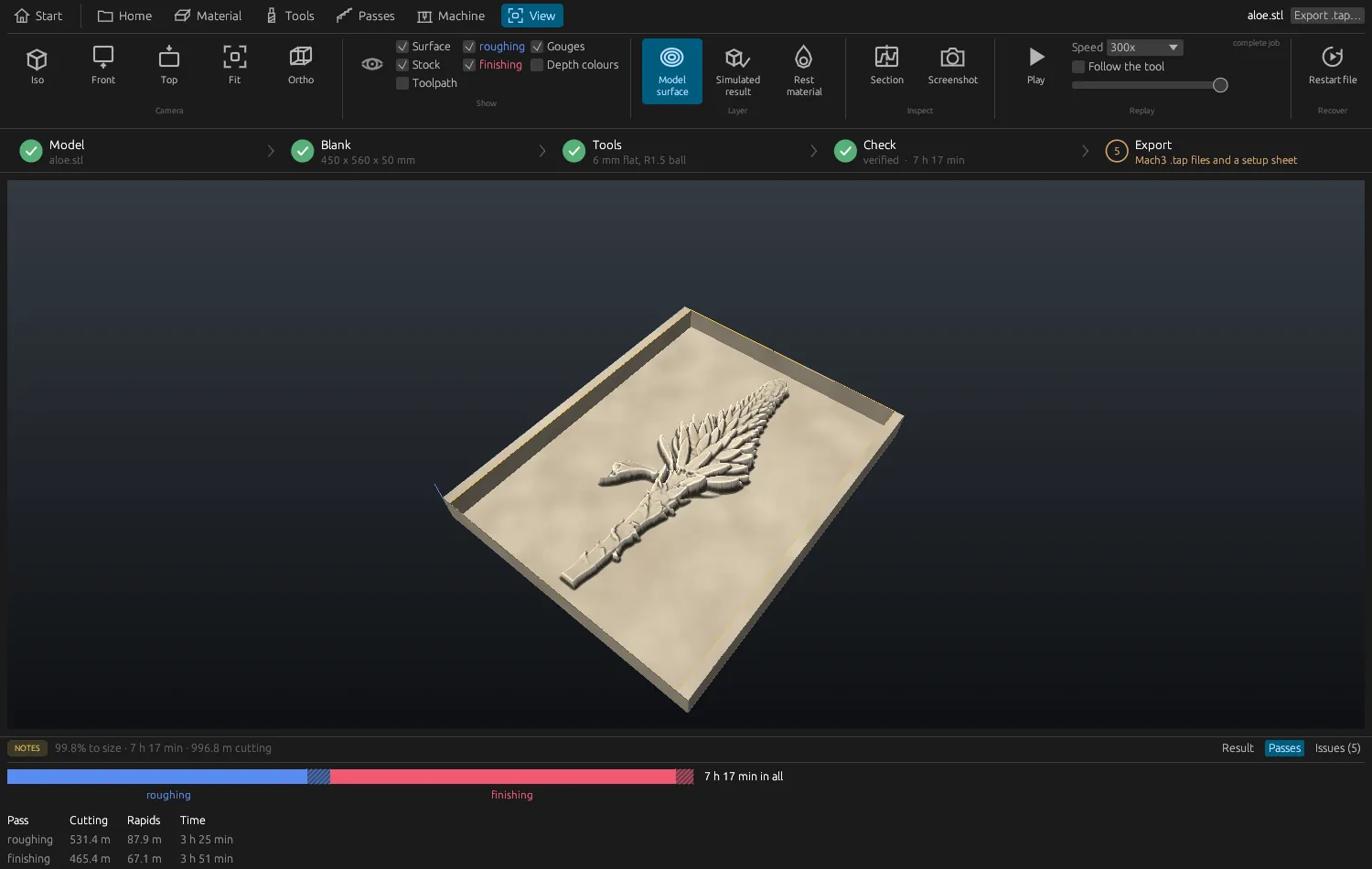
Every move in both files is checked against the model before export, and gouges are marked in the 3D view if there are any. A simulation shows what the cut will actually leave, and the report shows where the machine’s hours go.
The time estimate follows a time factor you calibrate from one real run, so the next quote starts from your machine, not a guess.
What is in it
Built for carving, not for drawing
No CAD, no modelling — bring a relief and carve it. Everything below is in the app today.
STL, OBJ or an image
Open a mesh, or a greyscale image as a height map. Place it by rotation, mirror, exact width or percent, and offsets.
Seen in its material
The relief is drawn as the carved block: marble, granite, limestone, sandstone, slate, pine, hardwood or MDF.
Wood and stone presets
Starting feeds, speeds and coolant for wood and stone, plus your own start and end blocks in every file.
Detail control
Keeps fine detail readable when a deep model is squashed into shallow stock — or smooths a noisy scan.
Panels
A relief larger than the machine, carved from several blanks that meet at the seams.
Mold mode
Carves the relief inverted and mirrored, ready to cast from.
Restart after a stop
Type the line number the controller shows and get a file that picks up safely from there.
Sessions
Split a long job into sessions that fit your working day.
Honest times
Calibrate the time factor from a real run; every estimate after that follows it.
Job quote
Machine time, blank, tool wear and your markup, added up for the job.
One-file projects
A
.relieffile holds the model and every setting. Open it and the toolpaths rebuild exactly.Height map and result STL
Export a 16-bit height map, or the simulated carve as an STL.
Setup sheet
A printable sheet for the machine: tools, zeroing and times.
Command line
cnc-clidoes the same work in batch, with no window.The catalogue, inside
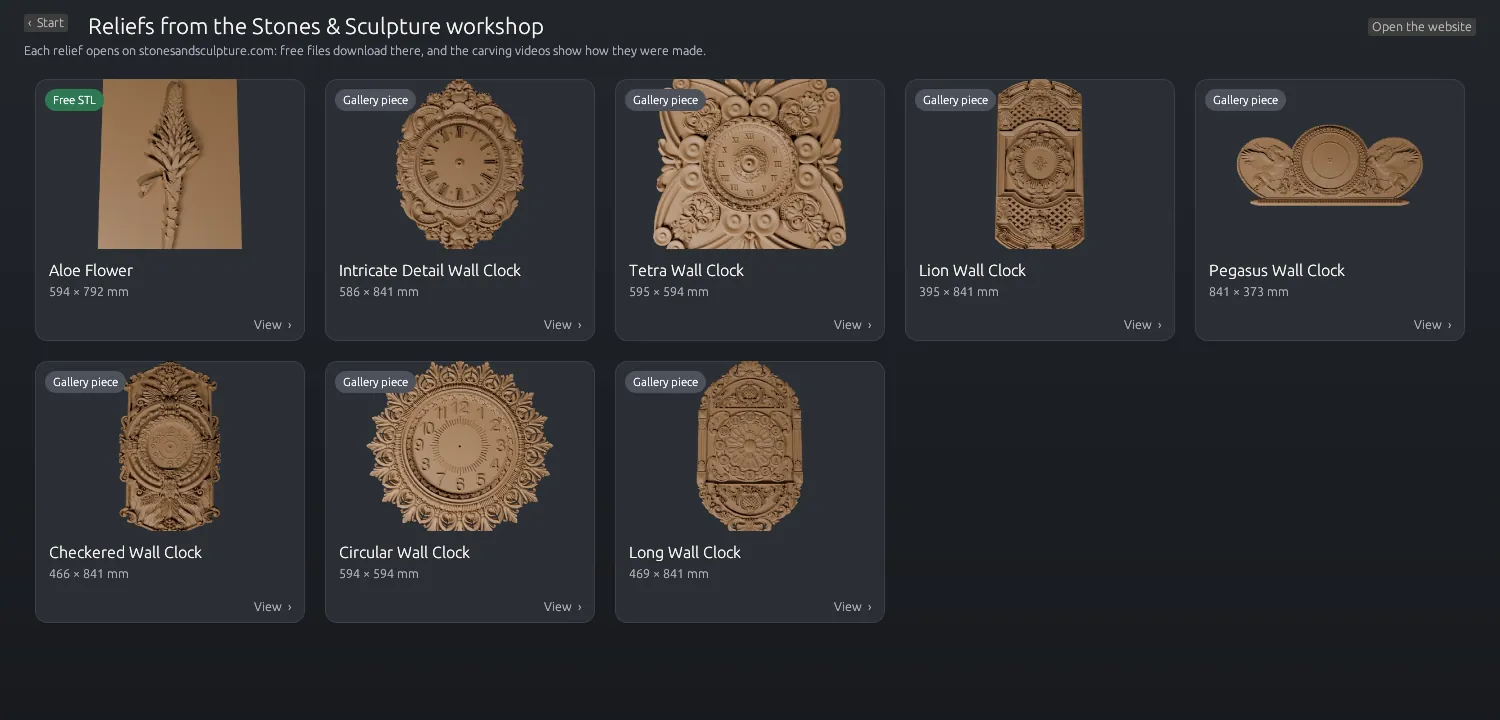
Browse the Stones & Sculpture reliefs from the start screen, with the latest file and video.
A look around
Every setting on a ribbon
Material, Tools, Passes and Machine each get one row. Change a number and the job is rebuilt behind it.




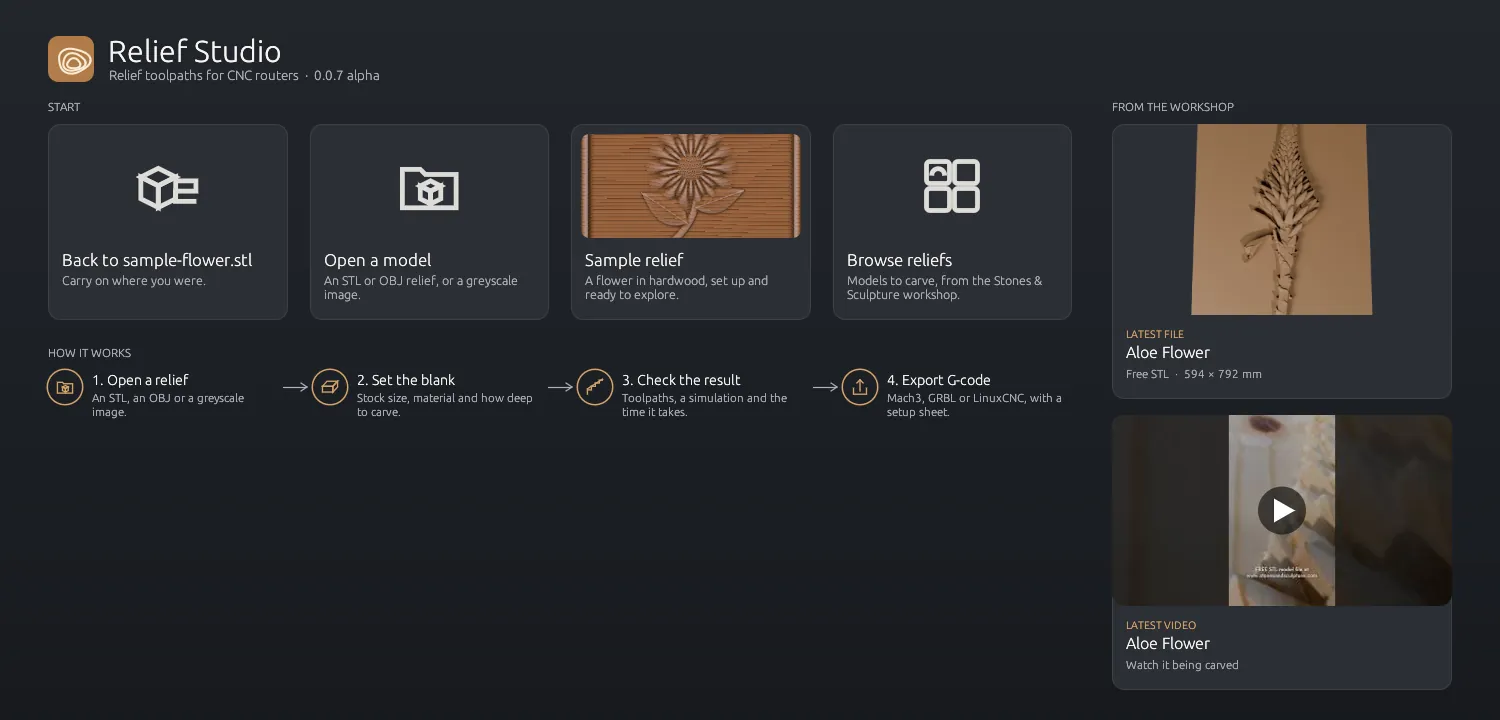
Start screen
Straight from the workshop
Open a model, the sample, or one of the reliefs from this site. The newest file and carving video show up on the start screen.
Alpha testing
Please read before you carve
This is pre-release software and it writes machine instructions. Review every program, use the built-in verification and simulation, set your machine up carefully, and run at your own risk. Stones & Sculpture accepts no liability for damage to machines, tools, materials, workpieces or people. The app asks you to accept these terms the first time it starts.
Relief Studio writes files; it does not drive the machine. Your controller runs the .tap files as it runs any other.
Free, as-is, community-supported. No account, no telemetry, nothing to buy. Found a bug? The setup sheet and a screenshot are the most useful things to send.
Get release updates
Leave your email to hear when a new version is out.